Filters help shoppers narrow a long product list down to the few products that fit what they need, such as a size or a budget. When filters are hard to find or confusing, shoppers give up and leave.
This guide covers the main types of ecommerce filters and the UX best practices that make them easy to use, with examples from online stores.
Filters only work as well as the product data behind them. Our guide to faceted search best practices covers how to choose facets and keep attribute values consistent.
What are ecommerce filters?
Ecommerce filters are the controls on a product listing page that let shoppers narrow results by product attributes, such as price, size, color or brand. When shoppers combine several filters, for example a brand and a price range, the system is often called faceted navigation.
Filters work alongside search and sorting, and each does a different job:
| Tool | What it does | Example |
|---|---|---|
| Search | Finds products that match typed words | A search for "running shoes" |
| Filter | Narrows the list by attribute | Only shoes under $100 in size 9 |
| Sort | Reorders the list | Lowest price first |
Why do product filters matter?
- Shoppers find products faster. A few filter selections replace scrolling through hundreds of products.
- More products get seen. Filters surface products that would otherwise sit deep in a long category page.
- Fewer shoppers leave. Baymard's usability research finds that most ecommerce sites have filtering it rates mediocre to poor, and shoppers who can't narrow a list tend to give up.
Filters can also affect how your store shows up in Google. Each filter a shopper picks, such as "Blue" or "Under $100", can create a new page address, so a store with many filters can end up with thousands of near-identical pages. Our guide to faceted search best practices covers which of these pages Google should see and index.
What types of ecommerce filters are there?
The right filters depend on what you sell. Most stores use a mix of the common types below, plus filters specific to each category.
1. Price filters
Price is one of the most-used filters. According to Baymard Institute, unexpected costs at checkout are the leading cause of cart abandonment, affecting 48% of online shoppers, so letting shoppers set a budget up front matters.
- Offer preset ranges, such as "Under $50" and "$50 to $100", for quick picks
- Add a slider with two handles and editable number fields for exact limits
- Show how many products fall in each range
- Filter on the final price, including discounts

2. Size filters
42% of shoppers returned their last purchase because of size or fit, so size filters matter most in apparel and footwear, and dimension filters in furniture.
- Standardize size labels, and offer a conversion guide for US, UK and EU sizes
- Show only sizes that are in stock
- For furniture and home goods, filter on dimensions such as width or height

3. Color filters
Color drives decisions in fashion and home decor.
- Use color swatches with a text label, not just color names
- Let shoppers select several colors at once
- Group close shades, such as navy and sky blue, under a broader "Blue"

4. Rating filters
98% of consumers read online reviews. A "4 stars and up" filter lets shoppers skip low-rated products in high-consideration categories.
- Show the number of reviews alongside the rating
- Mark verified purchases, so shoppers can trust the reviews behind the rating

5. Availability and promotion filters
Filters such as "In stock" or "On sale" match how many shoppers decide: they want what they can get now, or at a discount.
- Add an in-stock filter so shoppers see only what they can buy
- Show restock dates and a notify button for out-of-stock items
- Use a sale or deals filter for promotions

6. Category-specific filters
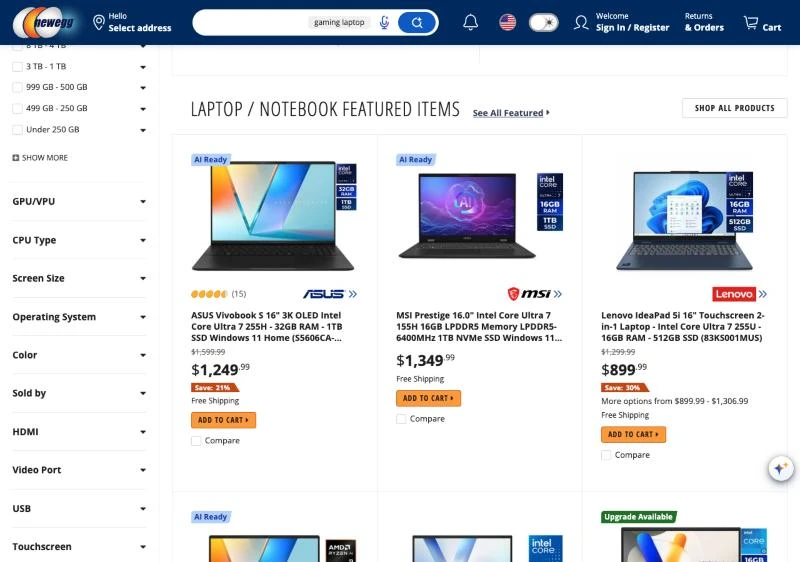
Generic filters aren't enough for detailed products. A laptop shopper needs memory and screen size, and a sofa shopper needs width and seat depth. If the product list shows a detail, such as the screen size of each laptop, shoppers expect to filter by it. Without that filter, they have to open products one by one to compare.
Show each category its own filters, and hide the ones that don't apply. For example, Newegg's laptop category adds filters for GPU, CPU type, screen size and HDMI, which only make sense for computers.
7. Thematic filters
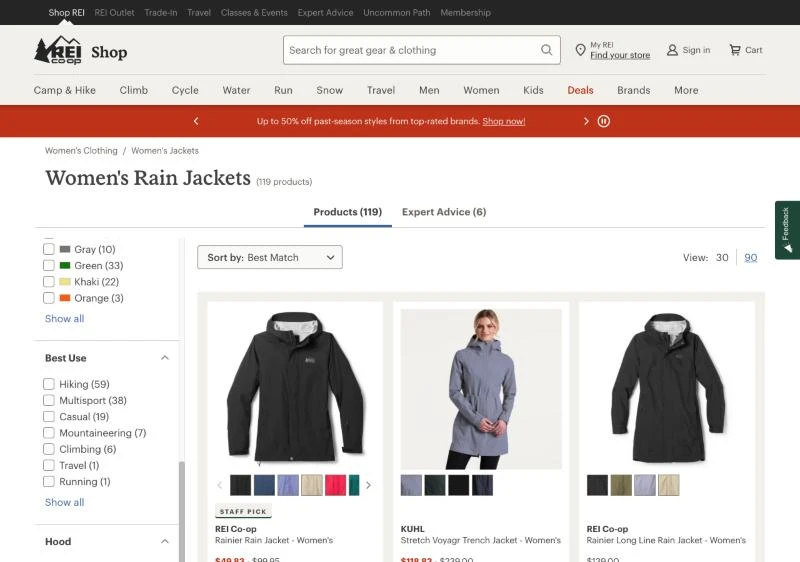
Some shoppers start with what they'll use the product for, not a product spec. Thematic filters help them narrow down before they know exactly what they want. For example, REI's rain jacket category has a "Best Use" filter with options such as Hiking, Climbing and Travel.
Ecommerce filter UX best practices
1. Put filters where shoppers expect them
On desktop, a left sidebar works best for large catalogs where shoppers combine several filters. A horizontal bar above the results suits smaller filter sets and fashion sites, where size, color and price matter most.


2. Allow several values within one filter
Shoppers rarely want just one brand or one color. Let them tick several values within a filter, and show all products that match any of them. Across different filters, show only products that match all selections. For example, "Blue or Black" in color, combined with "Under $100" in price.
Baymard found 14% of sites don't let shoppers select more than one value in a filter. Use checkboxes for multi-select, and radio buttons only where values can't combine, such as men's and women's.

3. Use clear labels in your customers' words
Label filters the way shoppers talk, such as "Red" in place of a color code, or "Toddler" in place of "Age 1 to 3" if that's how your customers search. Keep names consistent across the site, so "Color" doesn't become "Shade" on another page.

4. Show how many products each option returns
A count next to each value, such as "Leather (24)", tells shoppers what they'll get before they click. Update the counts as other filters are applied.
5. Show applied filters clearly
Show active filters above the results as chips shoppers can remove with one click, such as "Color: Blue ×", with a "Clear all" option. Baymard found 20% of sites don't keep applied filters visible.

6. Prevent "no results" dead ends
Grey out or hide values that would return zero products, and update the options as shoppers make selections. If a combination still returns nothing, suggest which filter to remove or show close alternatives.
7. Keep filters when shoppers go back
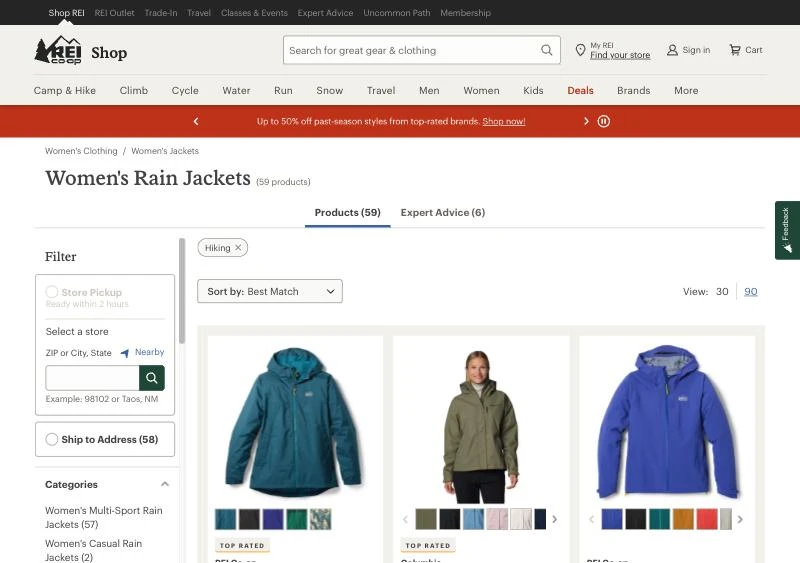
If a shopper opens a product and returns to the list, their filters should still be applied. Storing the filter selections in the page URL keeps them in place and lets shoppers share a filtered list. For example, when a shopper filters REI's rain jackets by Hiking, the filter is added to the page URL. After opening a jacket and going back, the list still shows only hiking jackets, with the Hiking filter shown above the results.
8. Design filters for mobile
- Open filters in a full-screen panel or bottom sheet from a sticky "Filter" button
- Show how many filters are active on the button, such as "Filters (3)"
- Let shoppers pick several values, then apply them with a "Show 42 results" button
- Use tap targets large enough for thumbs, and collapse filter groups by default

9. Use analytics to refine your filters
Track how shoppers use filters and adjust:
- Filter usage rate: the share of category page visitors who use filters
- Most and least used filters: move the most used to the top, and remove or collapse the rest
- Drop-off after filtering: a high rate can point to confusing labels or empty results
- Zero-result combinations: filter sets that return nothing
A/B test changes one at a time, such as a new filter order or label wording.
Why do filters need clean product data?
A filter can only show a product if the product's record has a value for that attribute. If half your office chairs have no weight capacity listed, a weight capacity filter hides them. And if one supplier writes "Stainless steel" and another "SS", shoppers who pick one miss the other.
Before adding a filter, check that most products in the category have a value for it, and that the values follow one standard. Hypotenuse AI helps with both: it tags products from their images against your own allowed values, and fills missing attributes from the web, PDFs and product images. For a deeper look, see our guide to faceted search best practices.
Ecommerce filter FAQs
How many filters should a category have?
Enough to cover the attributes shoppers use to decide in that category. Baymard recommends prioritizing the most relevant attributes and collapsing the rest, since long, unprioritized filter lists are harder to use than a few well-chosen ones.
What's the difference between filters and facets?
The terms are often used interchangeably. A filter is any control that removes items from a list. Faceted navigation is a set of filters, one for each product attribute, that shoppers can combine.
Should filters update results instantly?
On desktop, updating results as each value is picked feels fastest. On mobile, let shoppers make several selections and apply them together with one button, which avoids the page jumping mid-selection.
What's the difference between filtering and sorting?
Filtering removes products that don't match. Sorting keeps every product but changes the order, such as lowest price first.